
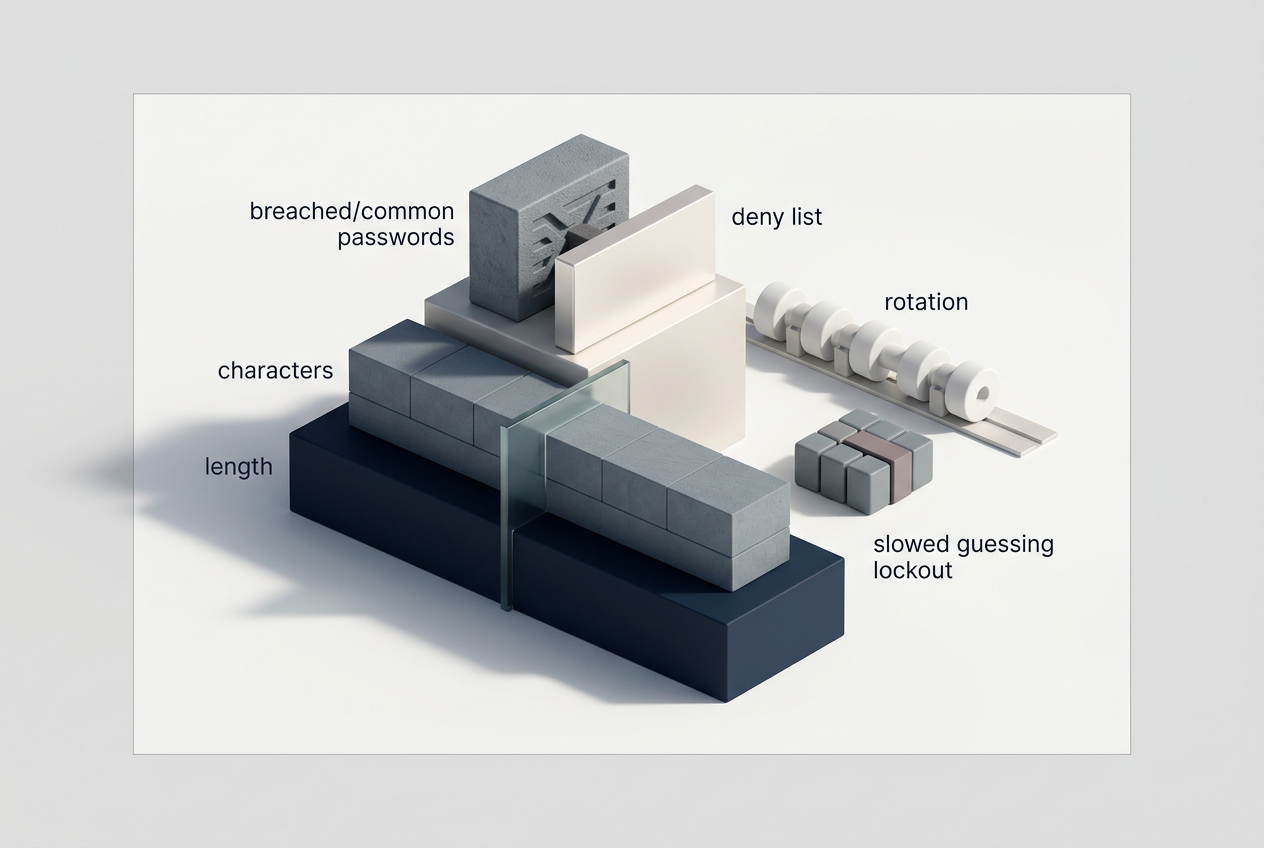
A website login should enforce a minimum length that depends on whether MFA is on, allow long passphrases with any characters, drop complexity rules and forced periodic changes, block common passwords, and slow down repeated guessing. That is the core of current guidance, and it differs from the familiar habit of demanding a capital letter, a number and a symbol and then forcing regular changes.
The short answer: long passwords, no composition rules, a deny list and slowed guessing
The reason for the change is simple. Demanding rules push people into shortcuts. The UK National Cyber Security Centre (NCSC) describes how users respond to what it calls password overload: they reuse the same password on several systems, follow simple and predictable patterns, or write passwords down where others can find them. Attackers know these habits and exploit them.
The NCSC also states a principle that is worth keeping in mind for every decision below: your security should rely on technical defences that you control, not on behaviour you cannot realistically expect from users. Passwords, even done well, are limited, so the rules you set work best alongside throttling, monitoring and multifactor authentication.
The rest of this article goes through each setting in turn, so that whoever configures your site's login, whether you in a platform's settings or a developer in the code, knows what to ask for and why.
Sources: cheatsheetseries.owasp.org [1] · www.ncsc.gov.uk [2]
Minimum and maximum password length
The application itself should enforce the minimum password length. The OWASP Authentication Cheat Sheet, citing NIST SP 800-63B, ties the minimum to MFA. Where MFA is enabled, passwords shorter than 8 characters count as weak. Where MFA is not enabled, the bar rises: passwords shorter than 15 characters count as weak.
For a website owner this turns into a practical choice. If your customer accounts or staff accounts do not use a second factor, an 8-character minimum is below what this guidance treats as acceptable, and 15 characters is the figure to aim for. If you do turn on MFA, 8 characters becomes the floor rather than the target.
The maximum matters too. The same guidance says the maximum should be at least 64 characters so that people can use passphrases. A low cap works against users who choose long phrases or use a password manager to generate long passwords.
OWASP adds a caution for developers: some implementations of hashing algorithms can be pushed into a denial of service by very long passwords. That is a reason to handle long input carefully in the code, not a reason to set a short maximum, and OWASP points to its Password Storage Cheat Sheet for how to handle passwords longer than the maximum.
Sources: cheatsheetseries.owasp.org [1]
Characters, complexity rules and silent truncation
OWASP's guidance on characters is permissive: allow every character, including unicode and whitespace. It also says there should be no composition rules limiting which characters are permitted, and no requirement for upper or lower case letters, numbers or special characters.
This is often the most surprising point for business owners, because complexity rules feel secure. The NCSC's description of password overload is the useful context here: when requirements become demanding, users fall back on simple and predictable ways of creating passwords, and attackers exploit those coping strategies. Dropping composition rules removes one source of that burden.
Allowing spaces and unicode has a practical benefit: people can type a sentence or a phrase in their own language. If your login form rejects a space or an accented letter, that is worth raising with whoever maintains the site.
A related rule is easy to miss: do not silently truncate passwords. If a system accepts a long password but checks only the first part of it, the user believes they have a long password while the site is really checking something shorter. When you review a login system or a platform, ask whether passwords are ever cut short behind the scenes.
Finally, OWASP says users should be allowed to use their email address as a username, provided the address is verified during sign-up. That keeps sign-in simple without weakening the password itself.
Sources: cheatsheetseries.owasp.org [1] · www.ncsc.gov.uk [2]
Block common and breached passwords with a deny list
Removing complexity rules does not mean accepting anything. The replacement is a deny list, sometimes called a blocklist. The NCSC describes this as a helpful defence where users choose their own passwords: a list that stops the most common, and therefore most easily guessed, passwords from being used.
OWASP explains why this matters. Attackers commonly guess passwords using dictionaries of common passwords and password lists, and they may use credentials leaked elsewhere in credential stuffing attacks. Screening new passwords against blocklists helps stop users from picking passwords that are common or already known to attackers, which OWASP notes is recommended by NIST SP 800-63B.
In practice this means that when someone signs up or changes their password, the site checks the new password against the list and refuses it if it appears there. A password can be long and still be a commonly used phrase, so the deny list and the length rule cover different weaknesses.
For a site owner, the question to ask a developer or platform provider is whether password creation and password change both check against such a list. If they do not, length rules alone leave the door open to the passwords attackers try first.
Sources: www.ncsc.gov.uk [2] · cheatsheetseries.owasp.org [1]
Stop forcing periodic password changes, but rotate after a leak
OWASP's guidance is to avoid requiring periodic password changes and instead encourage strong passwords and MFA. It cites NIST: verifiers should not mandate arbitrary password changes, such as on a fixed schedule.
The guidance pairs these ideas on purpose: instead of spending users' effort on scheduled changes, OWASP directs it toward choosing strong passwords and enabling MFA, which are the controls the rest of this article describes.
That does not mean passwords never change. OWASP says to ensure credentials are rotated when a password leak occurs, at the moment a compromise is identified, or when the authenticator technology changes. So the rule for your site is event-driven rotation rather than calendar-driven rotation: if you learn that accounts or a password database may have been exposed, that is the time to require new passwords.
For a business owner, the decision is straightforward. Remove scheduled expiry from customer and staff logins where your platform allows it, and make sure you have a way to force a reset for affected accounts when there is a reason to.
Sources: cheatsheetseries.owasp.org [1]
Throttling or lockout: how to slow down guessing
Password rules decide what a password looks like. A separate control decides how many guesses an attacker gets. The NCSC describes two approaches.
The first is throttling: the system adds a progressively longer delay between successive login attempts. This limits how many guesses an attacker can make while still giving real users several chances to remember their password.
The second is account lockout, where a user gets a fixed number of attempts before the account is locked. The NCSC prefers throttling, because lockout can leave legitimate users unable to get in and requires an account recovery route. Lockout also gives an attacker an easy way to cause a denial of service, especially on large online systems.
If you do use lockout, the NCSC recommends allowing between 5 and 10 attempts before the account is frozen, to avoid accidental lockouts. A stricter limit makes it easier for customers who simply mistyped to lock themselves out.
The NCSC also suggests security monitoring alongside throttling or lockout, to detect and alert you to signs of malicious or abnormal behaviour. Its examples are logins that fail the second step of MFA, brute-forcing of passwords including password spraying, logins from unexpected geographical areas, and user reports of unexpected lockouts or other unusual account behaviour. If your platform or host offers login alerts, these are the patterns worth watching.
Sources: www.ncsc.gov.uk [2]
Where MFA fits into your password policy
MFA is not a separate topic from password rules; it changes them. As the length section showed, the guidance treats 8 characters as the weak threshold with MFA and 15 without it. Turning on MFA therefore relaxes how much the password alone has to carry.
The NCSC calls MFA one of the most effective ways to add protection to a password-protected account. It says MFA is best used where there is extra risk, such as logging in from a new device, internet-facing systems, or priority accounts. A website's admin login is internet facing, and the accounts that can change your site, your store or your customer data are the priority accounts.
If your business uses single sign-on to reach several tools with one set of credentials, the NCSC recommends that SSO be set up to require MFA, because an attacker who compromises an SSO account could reach far more than in a traditional system.
For a small business, that points to admin and staff accounts as the natural candidates for MFA. This article does not give enrolment steps. Before anyone switches enforcement on in your platform's settings, confirm with your developer or platform provider that the affected admins have enrolled a second factor and that a working recovery route exists, so an administrator is not locked out of the site; if that cannot be confirmed, leave enforcement off until it is. Then decide whether to offer or require MFA for customers, and set your minimum password length to match.
Sources: cheatsheetseries.owasp.org [1] · www.ncsc.gov.uk [2]
Limits of this guide
This is a decision guide, not a configuration manual. It does not give steps for a particular content management system, hosting control panel or login plugin, because settings and their names differ between platforms. Before changing a live login policy, confirm with your platform's documentation or your developer what each setting actually does.
It also does not cover how passwords are stored on the server, how password reset flows should work, or how to choose and roll out a specific MFA method. Those are separate decisions with their own guidance.
Finally, a written policy is not proof of enforcement. Whether your site truly applies the length, deny list and throttling rules described here is something to verify with your developer or a security test rather than assume from a settings page.
Questions and answers
What password rules should a website login enforce?
A website login should enforce a minimum length that depends on whether MFA is on, allow long passphrases with any characters, drop complexity rules and forced periodic changes, block common passwords, and slow down repeated guessing.
What is the minimum password length without MFA?
Where MFA is not enabled, the bar rises: passwords shorter than 15 characters count as weak.
Should a website require capital letters, numbers and symbols?
no requirement for upper or lower case letters, numbers or special characters
Should users be forced to change passwords regularly?
OWASP's guidance is to avoid requiring periodic password changes and instead encourage strong passwords and MFA.
How many failed logins should trigger account lockout?
the NCSC recommends allowing between 5 and 10 attempts before the account is frozen, to avoid accidental lockouts
Is throttling better than account lockout?
The NCSC prefers throttling, because lockout can leave legitimate users unable to get in and requires an account recovery route.
Compare your own site's login settings against the points in this guide and list any you want to raise with your developer or platform provider. For real-world cases, see how valid login credentials opened a major app database and why business logins are a phishing target, then run a free website security scan.